Planning Poker Linear Integration

Planning Poker Linear Integration on KollabePlanning Poker Linear Integration on Kollabe With Kollabe, you can now import your issues directly from Linear! This powerful integration enhances our Planning Poker tool by connecting directly to your Linear workspace. Quickly pull in issues from any team, project, or cycle and start estimating right away. While the integration is active, your estimates will be automatically synced back to Linear! Keep reading to find out how to set up your Linear integration.

Setting up your Linear Integration


Step 1: Connect to Linear
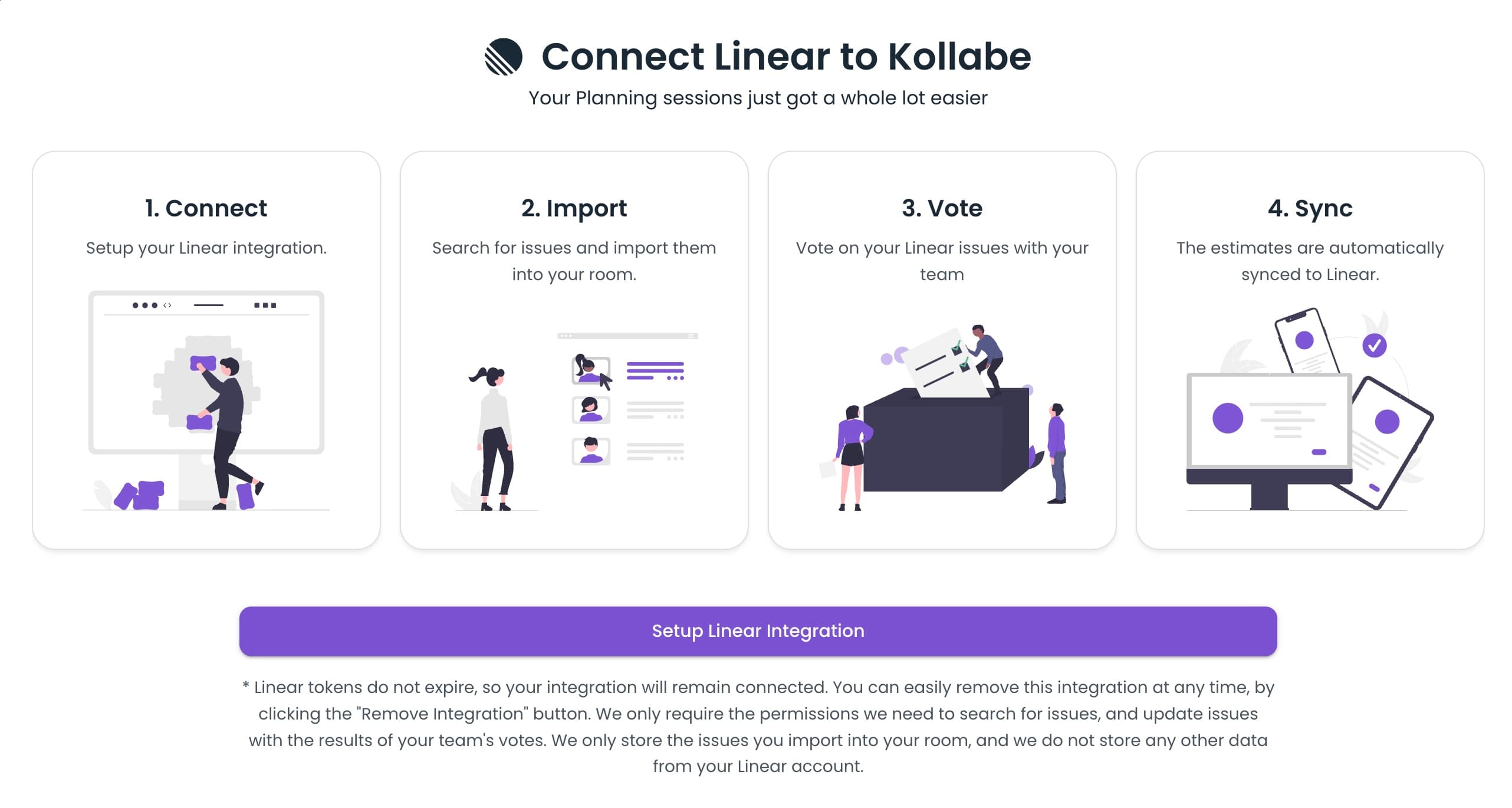
The first thing you'll need to do is grant Kollabe permission to read your Linear issues. Click the Linear button in the import menu to get started. This will open a modal to guide you through the setup process. Once you click Connect, you'll be redirected to Linear to authorize Kollabe. Log in to your Linear account and grant the necessary permissions. After authorization, you'll be redirected back to Kollabe ready to import issues! Kollabe Linear Integration setupKollabe Linear Integration setup

Step 2: Select your Team

After connecting your Linear account, you'll be prompted to select a team. Linear organizes issues by team, so you'll need to choose which team's issues you want to work with. You can change this at any time through the integration settings. Once you've selected a team, Kollabe will automatically sync your estimates back to Linear using your team's configured estimation scale.

Step 3: Search and Import your Issues

With your integration set up, you can now search for and import issues from Linear. Use the built-in filters to narrow down your search:
  • Project - Filter by specific projects within your team
  • Cycle - Filter by sprint cycles (current, upcoming, or past)
  • Status - Filter by workflow states like Backlog, Todo, In Progress
  • Labels - Filter by issue labels
  • Assignee - Filter by team member assignment
Select the issues you want to estimate, click import, and they'll be added to your planning poker session instantly!

Step 4: Syncing your Estimates

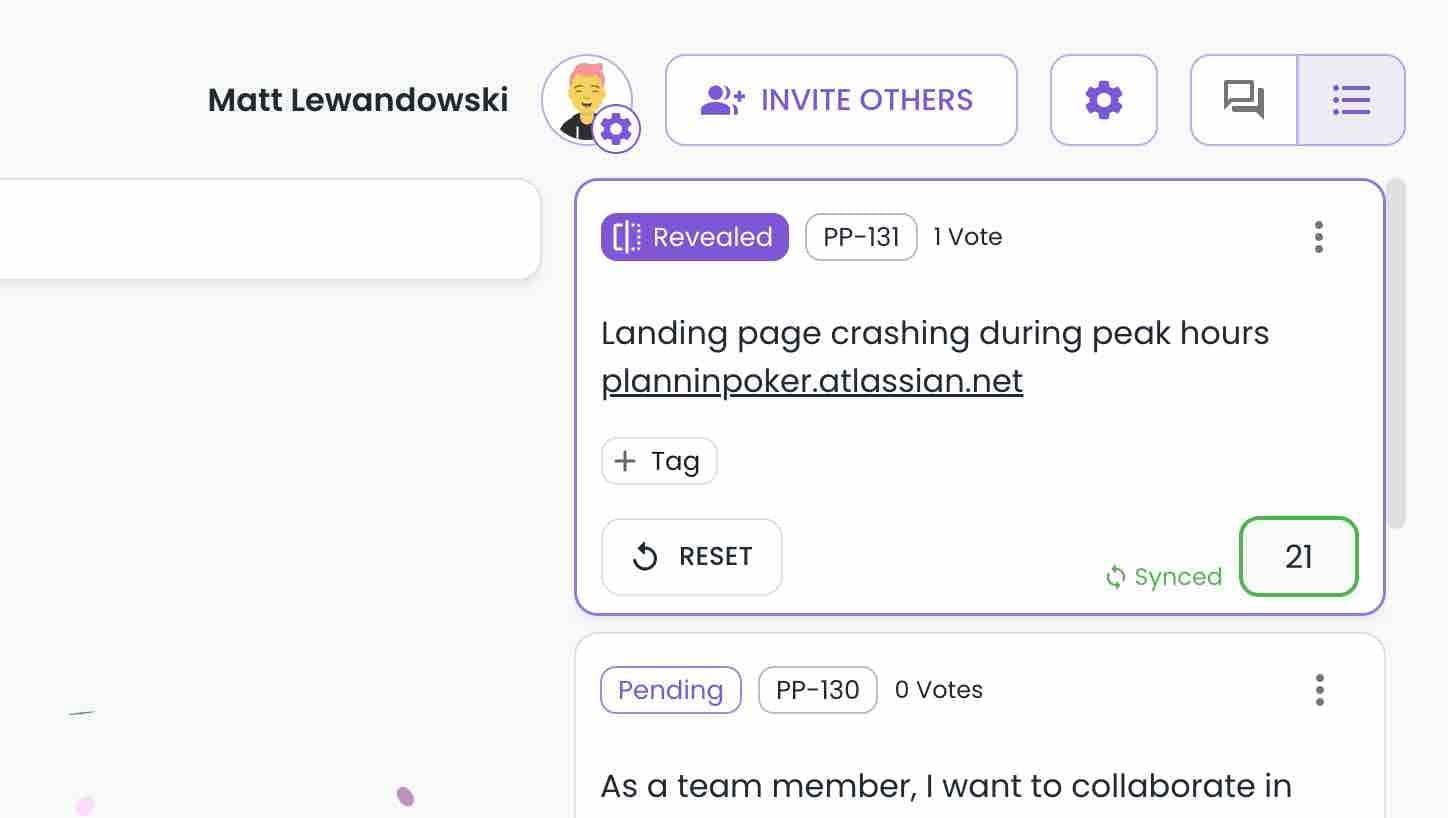
Now that everything is set up and your issues are imported, you can start voting! Once you reveal the round and select a winning estimate, Kollabe will automatically sync that value back to Linear. A small indicator will briefly appear on the winning vote to confirm the sync was successful. If you don't see this indicator, the sync may have failed - usually because the integration was disconnected or there was a permission issue. Linear votes being syncedLinear votes being synced

Why Linear + Planning Poker?

Linear is built for modern software teams who value speed and simplicity. By integrating Linear with Kollabe's Planning Poker, you get:
  • Seamless workflow - No more copying issue titles back and forth
  • Real-time sync - Estimates are automatically updated in Linear
  • Team alignment - Everyone sees the same issues and can discuss them in context
  • Accurate planning - Use Planning Poker's proven estimation techniques with your actual backlog


Conclusion

Integrating Linear with Kollabe is a great way to streamline your estimation process. Import issues in seconds, estimate as a team, and have results automatically synced back to Linear. It's the fastest way to go from backlog to estimated sprint. Kollabe also integrates with Jira, Azure DevOps, and GitHub Projects if your team uses those tools instead. Ready to start? Try Kollabe's Planning Poker tool with Linear integration today! If you have any questions regarding how we handle your data, please refer to our privacy policy.Last Updated on 22/01/2026